How to Fix Overlapping Turo Reservations
Two reservations on one vehicle can't both prove possession at a toll timestamp — how to find and resolve the overlap.
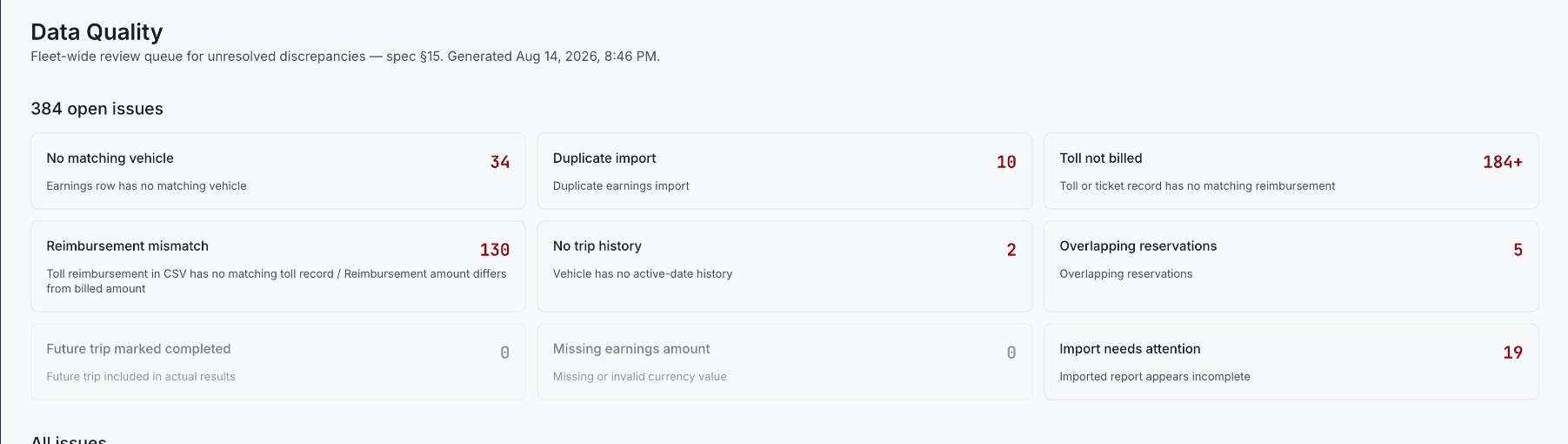
Two reservations assigned to the same vehicle can't both prove possession at the same toll timestamp. An overlap can reflect bad source data, a trip that changed after the fact, a cancelled booking that wasn't cleaned up, an extension, a vehicle reassignment, or a genuine operating conflict — and it's worth figuring out which before touching any of the affected billing.
Find the actual overlap interval
Compare exact start and end timestamps, time zones, reservation status, vehicle identity, and actual pickup or return — a date-only comparison can hide a real overlap or exaggerate one that isn't actually there once you look at the hour-level timestamps.
Determine which source is authoritative, don't just make the data fit
Review the latest Turo export, reservation history, trip messages, extension status, cancellation, and any vehicle reassignment. Don't shorten one trip's recorded window just to make the two reservations stop overlapping on paper — that fixes the symptom while destroying the evidence of what actually happened.
Pause affected tolls, then correct and rerun
Any toll that falls inside the overlap window should go to manual review rather than automatic assignment to whichever reservation happens to be first or closest — automatic assignment here can bill the wrong guest outright. Once the reservation status and vehicle are validated, update the faulty relationship, reprocess the affected tolls, and leave an audit note explaining what changed and why. A late-return handoff that looks like an overlap has its own specific handling — see How to Keep Turo Toll Reimbursements From Missing the Deadline and Turo Tolls After a Late Return for that boundary case specifically.
Kenneth Elliott operates Elliottz Motors and has managed more than 1,000 Turo trips.