Record submission, payment, rejection, or follow-up status
Move a reimbursement case through its lifecycle as Turo responds.
Last updated
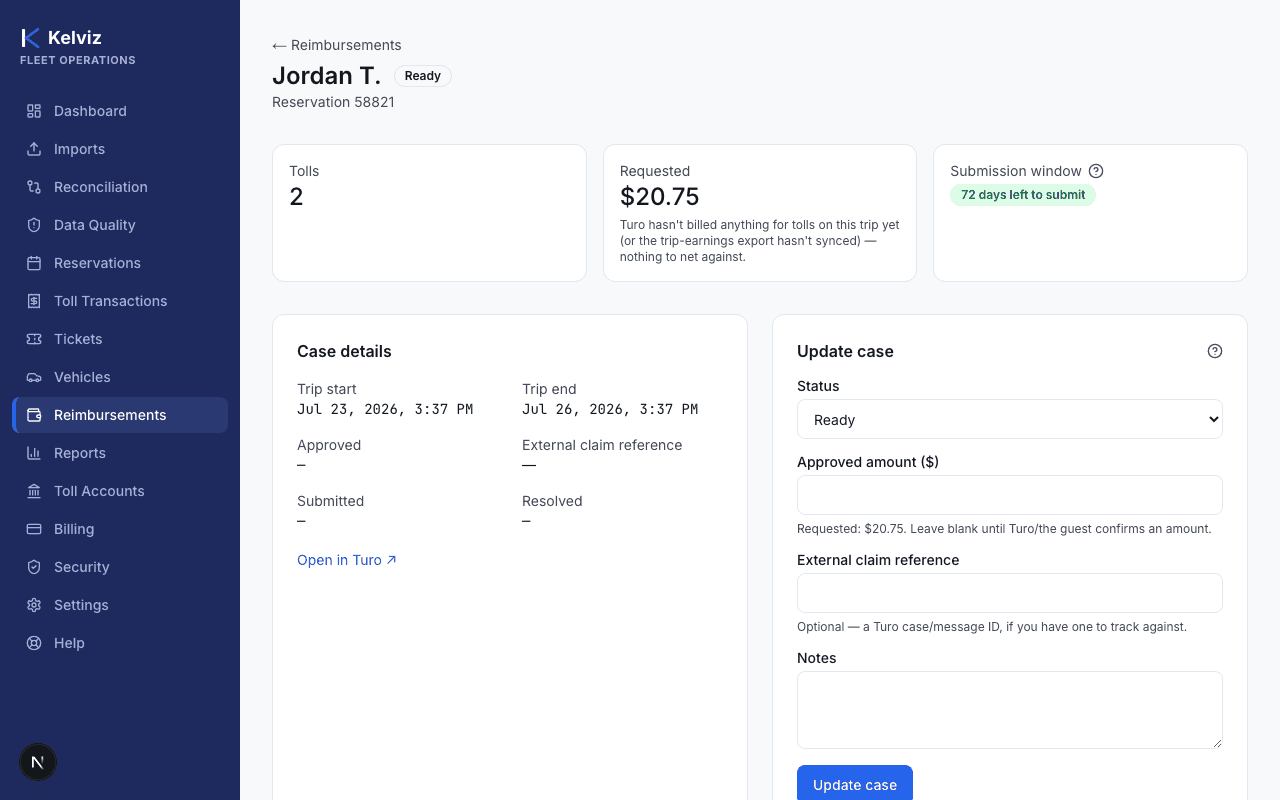
Who can do this: Owners, admins, and operators — reviewer does not have access to manage reimbursement cases.
Steps
- 1
Open the case from the Reimbursements list.
- 2
In the "Update case" panel, choose a Status: Ready, Submitted, Awaiting payout, Paid, Disputed, or Closed.
- 3
Enter an Approved amount once Turo or the guest confirms one.
Leave it blank until then — the panel shows the requested amount as a reference.
- 4
Optionally enter an External claim reference and Notes.
- 5
Select Update case.
Expected result
The case's status badge updates everywhere it's shown, including the Reimbursements list and dashboard pipeline counts.